

How Salon Clients Book on Google Maps: Reserve with Google for Salon Owners
A large share of salon appointments are now requested when nobody is at the front desk to answer the phone. Professional Beauty, a trade magazine for the hair and beauty industry, reported in August 2026 that more than half of appointments (52%) are booked outside standard working hours, and that 47% of appointments are made within 24 hours of the visit. Those two figures describe the same client: someone who decides late in the evening that they need a cut, a colour or a set of nails tomorrow, picks up a phone, and expects to finish the booking in the next few minutes. If that client searches “hair salon near me” and your listing has no way to book, the booking goes to the salon down the road whose listing does.
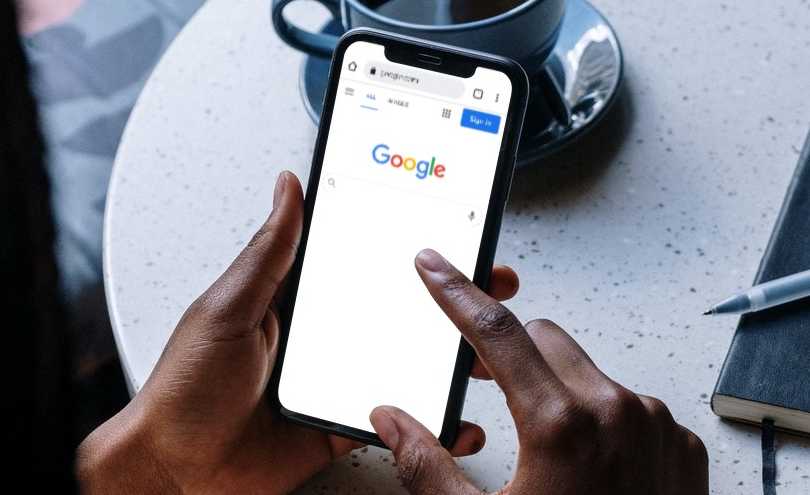
This guide follows that client step by step. It starts with what the client sees on Google Search and Google Maps, moves through the service and time selection, the confirmation and the reminders, and covers how the client cancels or reschedules without calling.
What the client sees: from “hair salon near me” to a confirmed appointment
The journey begins with a search, so it helps to understand how that search is answered. When a client types “hair salon near me” or “nail salon open Saturday” into Google, or looks for salons on the Google Maps app, Google shows a set of local business listings. Each listing carries the salon’s name, address, opening hours, photos, and reviews. For salons that have connected a booking system Google works with, the listing also carries a Book button.
That button is the key focus of this article because it changes the client’s entire booking experience. Without it, clients must leave Google, find the salon’s website, navigate to its booking page, and start the booking process. With it, they can simply tap the button, select a service and time, enter their contact details, and receive a confirmation – all without leaving Google. The salon doesn’t need to redirect clients to its website, and each booking is automatically added to the salon’s appointment calendar.
This becomes more important every year as smartphone use continues to grow. According to the Pew Research Center, an independent research organisation, 91% of American adults owned a smartphone as of November 2025. When a client searches for a salon on their phone while commuting or relaxing at home, they’re unlikely to copy a web address into a browser if they can book with a single tap on Google Maps. Salon bookings through Google Maps make it easy for clients to act on their decision right where it happens.
What Reserve with Google is, and why the Book button appears only for some salons
Because the Book button appears on some listings and not others, the next question is what controls it. The answer is a Google feature called Reserve with Google.
Reserve with Google is Google’s booking feature that places a Book button on a business’s listing in Google Search and Google Maps, so the client can reserve an appointment inside Google rather than on the business’s own website. Google does not run the salon’s appointment book itself. Instead, it connects to a booking provider, which is the scheduling software the salon already uses to manage its calendar. The booking provider sends Google the salon’s real-time availability, meaning the open appointment slots as they stand at that moment, and Google sends the completed booking back to the provider so it lands in the salon’s calendar.
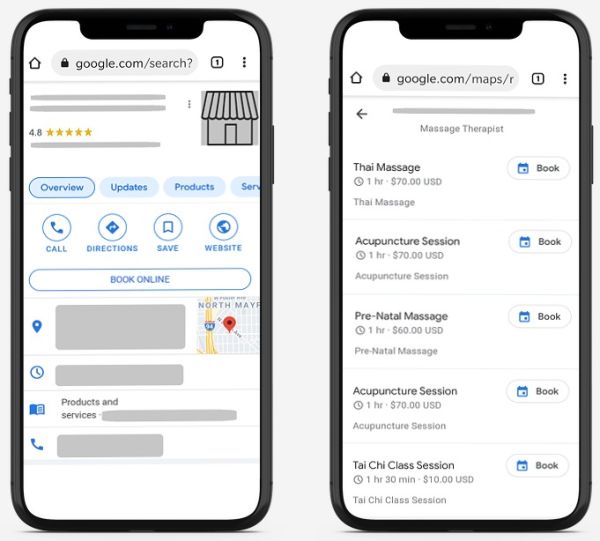
Two conditions therefore have to be true before a salon’s listing shows the button. First, the salon must have a Google Business Profile, which is the free listing a business claims and manages on Google so that its details appear in Search and Maps. The salon needs to have claimed that listing and be able to manage it. Second, the salon’s booking software must be one of the providers Google partners with for Reserve with Google.
Eligibility is the third factor, and it is set by Google rather than by the booking provider. Reserve with Google currently supports merchants offering wellness and fitness services, spa and beauty services, and financial services, and only specific services and countries were eligible. Hair and beauty salons, nail salons and barbers sit squarely inside the spa and beauty category, which is why Reserve with Google for salons is a natural fit. A salon owner should still expect Google’s own criteria to decide whether a particular service in a particular country can be booked this way.
Choosing a service and a time inside the booking flow
Once the client taps the Book button, the booking flow begins, and it is useful to separate what the booking software controls from what Google controls.
The booking software supplies the services and the availability. Everything the client can choose from on Google comes from the salon’s own booking account: the list of services, the duration and price set for each, and the free appointment times. The principle behind this is simple. Salon owners set their own booking rules, and clients see only available slots, not the entire schedule. If a stylist is fully booked on Tuesday afternoon, Tuesday afternoon simply does not appear as an option, which means the client cannot accidentally book a time the salon cannot honour.

Google presents the steps. The sequence is short: the client selects the service, provides their details and, if required, pays online. The exact screens, buttons and wording belong to Google and may change over time, so the salon owner should think of them as Google’s part of the journey. What the salon owner needs to know is that the choices on offer are the ones configured in the booking software, and that the slot the client picks is taken from the salon’s live calendar at that moment.
For the salon, this is the practical meaning of real-time availability. Because the open slots shown on Google are the same slots shown on the salon’s own website and in the salon’s calendar, a booking made on Google Maps and a booking made over the phone a minute later cannot both claim the same chair at the same time. Salon online booking through Google is drawing from one appointment book, not a copy of it.
Stylist preference and multi-service visits: cut and colour in one booking
Salon clients rarely want “a haircut” in the abstract; they want their stylist, and often two services in the same visit. It is worth being precise about how both are handled.
On stylist preference, a salon can give clients a customised reservation experience in which they choose their preferred staffer and see only that staffer’s available slots. The ability to pick a preferred stylist, alongside self-cancellation and rescheduling, is one of the features that keeps salon clients committed to the appointment. The salon owner controls this by assigning staff to specific services and setting working hours for each staffer, so a colourist who does not cut hair never appears as an option for a haircut. These are settings in the salon’s booking account; inside the Google screens, the client follows the booking steps Google presents, and the services and staff on offer are the ones the salon configured, so a salon should run a test booking from a phone to see how stylist choice appears for its own account.
On multi-service visits, salon booking software offers several tools that apply. The salon can set different durations and prices for each service and can schedule combined services and service bundles, which allows a cut and colour to be offered as a single bookable item with the correct total time blocked out. The salon can also upsell with options and extras, such as a treatment added to a colour service, and clients can book multiple appointments at once with an integrated booking cart. Whether a particular combination appears as one item on Google depends on how the salon has configured its services and on what Google’s flow presents, so the safest way to make a cut and colour bookable from Google Maps is to set it up as a combined service with its full duration.
Confirmations and reminders for a booking made on Google
A booking is only useful if the client remembers it, so the next step in the client’s journey is the confirmation. Automatic branded and customised booking confirmation emails go to the client as soon as the booking is made. The salon’s name and details go out on that confirmation, so the client who booked a salon appointment on Google is left in no doubt about which salon they are visiting, at what time, and for which service.
Reminders follow the same automatic pattern. Automatic email and text reminders go out before each appointment, and they are the main tool for reducing costly no-shows. A no-show is a client who books an appointment, and then neither arrives nor cancels, leaving a chair empty that could have been sold to someone else. The problem is easy to picture in terms every salon owner recognises: hourly slots operate similarly to the seats on an airplane; they are limited, in demand, and once that plane has taken off, that seat cannot be resold again.

For a salon owner reading this, the significant point is that nothing extra has to be set up for Google bookings. Because a booking made through Reserve with Google for salons lands in the salon’s calendar in the same way as any other booking, the same confirmation and the same reminder schedule apply to it. The client gets the same experience whether they booked from Google Maps, from the salon’s website, or over the phone, and the salon owner manages one set of reminder settings rather than two.
How clients cancel or reschedule online without calling the salon
Plans change, and the client’s next question is usually how to move or cancel the appointment. Clients can reschedule and cancel appointments online without having to call the salon, and reservations and rescheduling take one click, for the salon and for its clients.
This matters for salon bookings on Google Maps because the client who booked in three taps expects to change the booking just as easily. Self-cancelling or rescheduling in a few clicks is one of the ways a salon keeps the appointment book honest: a client who can move an appointment at 11 pm is far more likely to do so than to forget and simply not turn up.
There is a further benefit for the salon when a cancellation comes from the salon’s side rather than the client’s. A rescheduling option for cancelled bookings allows clients to easily reschedule their cancelled appointments when a staff member is ill, or the shop is closed for maintenance. Rather than ringing every client on the list, the salon can let each client choose a new time themselves.
Because a booking made on Google exists in the salon’s booking system like any other booking, the client’s cancellation and rescheduling follow the rules the salon has set there; a test booking from a phone will show the salon exactly how the client is guided to make a change.
Setting your own booking and rescheduling rules
Self-service only works for the salon if the salon controls the terms, and the salon sets its own booking rules for appointments. Several settings are relevant to a salon that is about to accept salon bookings on Google Maps.
- Time gaps between appointments. The salon can assign an automatic time gap between slots so there is time to clean the station and prepare for the next client. That gap is built into the availability Google shows, so a client cannot book the minute the previous appointment ends.
- Working hours per staffer and per location. Rostering lets the salon set hours for different locations, specific working hours for each staffer, and holidays and sick leave, which means the availability offered on Google reflects who is actually on the floor.
- Terms and cancellation policies. Clients must accept the cancellation policy and the salon’s terms and conditions to complete their online reservation, so the salon’s notice period and late-cancellation terms are agreed to at the point of booking rather than argued about afterwards.
The thinking behind these settings is straightforward. A clear cancellation policy with a defined notice period, combined with a booking cut-off that blocks self-rescheduling inside that window, prevents reschedule abuse without a single phone call. The sensible sequence for a salon is to settle these rules first and switch on the Book button second, so that the first client to book a salon appointment on Google is already working within the salon’s terms.
Where Google bookings land: one calendar for Google, website, phone and walk-ins
The owner’s most common worry about adding a new booking channel is ending up with two appointment books, so this section deals with that directly. Bookings made through the Google Reserve integration appear automatically on the Bookeo calendar, online bookings update the dashboard in real time, and in-store and phone bookings can be recorded in the same dashboard.
Put those three facts together, and the picture is a single calendar. A booking from Google Maps, a booking from the widget on the salon’s website, a phone booking typed in by the receptionist, and a walk-in recorded at the desk all sit in one place, against the same stylists and the same hours. The result is an organised calendar with no more double bookings or scribbled notes, which the salon can check from anywhere, at any time, on any device, with a notification whenever an appointment is booked, changed or cancelled.
For the salon team, this has a practical consequence. A stylist glancing at the day’s column does not need to know, or care, which channel each client came through; the appointment is simply there, with the service, the duration and the client’s details attached. Salon booking software that treats Google as another doorway into the same room, rather than a separate building, is what makes Reserve with Google safe to switch on.
Solo stylists, booth renters and multi-branch salons
Salon businesses come in very different shapes, so it is worth stating how the same set-up fits each, from a single stylist to a franchise with several branches.
A solo stylist or booth renter, meaning a stylist who rents a chair inside a larger salon and runs their own client list, is managing one calendar and one life. Automatic sync with the stylist’s personal calendar means salon bookings on Google Maps can appear beside the stylist’s personal commitments without re-typing. The same stylist gets the automatic confirmations and reminders that a large salon gets, which removes the evening ritual of texting every client for tomorrow.
A multi-stylist salon relies on the rostering described earlier. Staff are assigned to specific services, each has their own working hours, and the availability sent to Google reflects all of it. The salon owner reviews the whole team’s day in one calendar while each stylist sees their own column.
A multi-branch salon or franchise adds locations. Location rostering sets different hours for different locations and assigns staff to specific locations. The Reserve with Google connection is made from the salon’s booking account under its distribution channel settings, and each branch’s Google listing is what the client finds when they search near that branch.
Setting up Reserve with Google for your salon in Bookeo
With the client’s journey and the owner’s calendar understood, the set-up itself is short.
- Claim and verify your Google Business Profile. The Book button attaches to the salon’s listing in Google Search and Google Maps, so the salon needs to have claimed that listing and have the ability to manage it. Check that the business name, address, category, and opening hours are correct, because they are what the client sees before they ever tap Book.
- Confirm your services are eligible. Reserve with Google eligibility is decided by Google. Spa and beauty services are among the supported categories, and only specific services and countries are eligible, so a salon should expect Google’s criteria to decide which of its services can be booked this way.
- Set up your services, staff and rules in Bookeo first. Everything the client will choose from on Google comes from the Bookeo account: service names, durations, prices, combined services for cut and colour, staff assignments, working hours, time gaps and cancellation terms. A 30-day free trial with no credit card required means a salon can configure all of this before anything goes live.
- Enable the integration. In Bookeo, the setting sits under Marketing, then Distribution Channels, then Reserve with Google. Click on it and fill in the required details; a tutorial for the integration is available from the same place.
- Check the listing and the calendar. Once the connection is live, search for the salon on Google Maps as a client would, confirm the Book button appears, and watch for the first booking to land in the Bookeo calendar with its confirmation and reminders attached.
Google controls how long it takes to activate the button through its own review process. To avoid delays once the button becomes available, salons should complete their Bookeo configuration before enabling the channel, ensuring they’re ready to accept bookings as soon as the button appears.
Knowing where your bookings come from
Once Google bookings start arriving, the natural question is how many of them there are. Booking analytics that compare revenue and customers across past months, show appointment performance statistics, track staff and resource utilisation, and present real-time charts and dashboards give the salon owner the raw material for that answer.
For a salon owner, the useful habit is to compare the months before and after the Book button went live. If the total number of bookings rises while phone bookings fall, and if more bookings arrive late in the evening than before, the Google channel is doing the job described at the start of this guide: catching the client who decides at 10 pm that they need an appointment tomorrow. Google Maps optimisation for “salon near me” searches and 24/7 online booking are two pillars of a salon’s online presence; Reserve with Google for salons is where those two pillars meet.
Frequently asked questions
How do salon clients book through Google Maps?
The client searches for a salon on Google Search or Google Maps, opens the salon’s listing, and taps the Book button. They then select a service, choose an available time, provide their details, and, if the salon requires it, pay online, all inside Google. The client never visits the salon’s website, and the booking appears automatically on the salon’s calendar.
Why does my salon not have a Book button on Google?
For the button to appear, two requirements must be met: the salon must have a claimed Google Business Profile, and its booking software must be a Reserve with Google partner with the integration enabled.
Can a client cancel or reschedule a Google booking online?
Yes. Clients can reschedule and cancel appointments online without having to call the salon, and rescheduling takes one click. The salon sets the rules, including the notice period in its cancellation policy, which clients accept when they book.
Can a client choose a stylist?
The salon can let clients choose their preferred staffer and see only that staffer’s available slots, and picking a preferred stylist is a core salon feature. The staff and services offered come from the salon’s own configuration; the booking steps themselves are presented by Google.
Can clients book a cut and colour together?
Combined services and service bundles carry their own durations and prices; options and extras cover upsells. Setting a cut and colour up as a combined service is the way to offer it as one bookable item with the correct total time.
Do Google bookings sync with my calendar?
Yes. Bookings made through the Google Reserve integration appear automatically on the salon’s calendar, alongside website, phone and in-store bookings, and that calendar can sync automatically with a personal calendar.
Key takeaways
- The client never leaves Google. With Reserve with Google, a client who searches “hair salon near me” taps Book on the salon’s listing, chooses a service and time, and gets a confirmation inside Google Search or Google Maps.
- Two requirements to switch on the button. A claimed Google Business Profile and a partner booking provider with the integration enabled.
- The booking software supplies the choices; Google presents the steps. Services, durations, prices, staff, and open slots come from the salon’s booking system account and reflect real-time availability; the screens the client taps through belong to Google.
- Confirmations, reminders and self-service apply automatically. A Google booking lands in the salon’s calendar like any other booking, so the same branded confirmations, email and text reminders, and online rescheduling and cancellation cover it.
- One calendar for every channel. Salon bookings on Google Maps, website bookings, phone bookings and walk-ins sit together, against the same stylists and hours, with rostering, time gaps and booking rules set by the salon.
- Set-up is short. Configure services and rules first, then enable the channel under Marketing, Distribution Channels, Reserve with Google.
Conclusion
A client can now go from a late-night “hair salon near me” search to a confirmed appointment in just a few taps. Salons that benefit most are those whose Google listing lets clients book at the moment they’re ready to make a decision. Reserve with Google provides the booking button, while the salon’s booking software manages services, availability, confirmations, reminders, and the rules that keep the appointment calendar accurate. By treating Google as another entry point to a single booking system, rather than a separate channel to manage, salons can enable this feature with confidence and keep day-to-day operations simple.
For salon owners, from solo stylists and barbers to nail salons, hair and beauty salons, and multi-branch groups, who want salon bookings on Google Maps to land in the same calendar as every phone and walk-in booking, Bookeo provides salon booking software with the Reserve with Google integration, automatic confirmations and reminders, and online rescheduling built in, with a 30-day free trial and no credit card required.