

How to Set Up Online Appointment Booking on a Massage Salon Website
A massage salon runs on appointments, and every appointment that has to be arranged by phone or message costs a therapist time between sessions. The U.S. Bureau of Labor Statistics notes that therapists usually work by appointment and that their weekly hours vary considerably, and it projects that employment of massage therapists will grow 15 percent from 2025 to 2035. A growing number of practitioners gives clients more choice, so a salon that is easy to book at any hour has an advantage. In practice, online booking for a massage salon means that a client opens your website, picks a treatment, a therapist, and a time that is genuinely free, pays or secures the booking, and receives a confirmation without anyone at the salon touching the phone. Confirmations and reminders then go out automatically. This guide walks through the full massage salon online booking setup in the order that avoids rework: the information to gather first, the nine configuration steps, and the checks to run before you announce the new booking page to your clients.
What You Need Before You Start
Most setup problems come from missing decisions rather than from the software. Before you open any settings screen, collect the following in one document so that each step below takes minutes instead of an afternoon.
- Service menu: every treatment you sell, with its exact duration, price, and a two- or three-sentence description written for clients. Include add-ons such as hot stones or scalp work, and note which treatments can be combined in one visit.
- Therapist list and hours: each therapist’s name, the treatments each one performs, their regular weekly hours, and any planned leave for the next few months.
- Room list: each treatment room, the equipment in it, and the treatments that depend on that equipment, such as a table suited to pregnancy massage.
- Payment gateway account: an active account with a supported payment gateway, because deposits and card details cannot be collected online until a gateway is connected.
- Cancellation policy wording: your notice period, any late cancellation fee, and your no-show rule, written in plain sentences that a client can read in under a minute.
- Intake questions: the health and preference questions you need before a first session, split into the few that are essential at booking and the rest that can wait.
A short note on the last two items. Deposit handling and no-show protection are the areas where small wording errors cause the most disputes, and they are also questions that come up repeatedly when owners compare massage salon online booking systems. Writing your policy and intake questions before setup, rather than improvising them in a settings field, keeps the rules you configure and the text your clients read in agreement.
Step 1: Build Your Massage Service Menu
The service menu comes first in online appointment booking for massage, because duration and price drive every calendar calculation that follows. Create one service for each treatment and length combination that clients actually buy: a 60-minute relaxation massage and a 90-minute relaxation massage are usually clearer to clients as two separate choices than as one service with a confusing duration picker.
For each service, set the duration, the price, and the client-facing description. Keep descriptions specific: name the technique, the pressure range, and who the treatment suits. Clients scanning a booking page on a phone decide quickly, and a precise description reduces the number of clients who book the wrong treatment and then call to change it.
Next, decide how your online massage booking will handle preparation time between clients. You can add a fixed preparation gap after each appointment, so therapists can change linens and ventilate the room before the next client arrives. Setting this gap once is more reliable than asking each therapist to block time manually.
If clients often combine treatments, you can build a “Mix & Match” style service and add each combinable treatment as a compact checkbox option. Each option a client ticks adds its own duration and price to the appointment, and an add-on can be set to take less time when it is combined than when it is booked alone. This keeps the booking page short while still allowing a client to build a 90-minute session from a back massage, a foot treatment and a facial massage.
Finally, if your salon runs group sessions such as a couples massage workshop or a self-massage class, these can be offered as workshops alongside regular appointments, so one massage booking page covers both.
Step 2: Add Therapists and Treatment Rooms as Resources
A resource is anything that must be free for a booking to go ahead. In a massage salon, that means both the therapist and the treatment room. Getting resources right is what stops massage salon online booking from placing two clients in the same room at 3 p.m., which is the double-booking problem that paper diaries and shared spreadsheets struggle with most.

Resources are organized in two levels. A type of resource is a category, for example “Therapists” or “Rooms”. Each type then contains individual resources, for example “Sarah” and “Daniel” under Therapists, and “Room 1” and “Room 2” under Rooms. For each resource, you can set:
- Name and description: what clients see when they choose a therapist, plus an optional image.
- Weekly hours: either your business hours or the resource’s own schedule, which suits part-time therapists.
- Special available time slots: extra hours outside the usual pattern, for example, a therapist covering a Sunday.
- Not-available periods: holidays, training days, or sick leave, so the booking page stops offering those times.
- Confirmation message: a short note added to the client’s confirmation email when that resource is booked, such as which entrance to use for a garden treatment room.
- Enabled checkbox, nickname and notes: a quick way to take a resource out of service, plus an internal nickname and notes for your team.
Once resources are set up, assign them to services. For each service, you can allow all resources of a type, only selected resources, or all except selected ones. This is how room-specific treatments work: if pregnancy massage needs the room with the pregnancy table, assign only that room to the pregnancy massage service. The system then confirms a booking only when the service, a qualified therapist, and the right room are all available at the same time.
Decide next how much choice clients get on your massage booking page. You can show the therapist type on the booking page, allow clients to pick a named therapist, and add a “first available” option for clients who care more about the time than the person. When the system chooses a therapist automatically, it can rotate fairly by picking the therapist used least recently in the last 7 days, picking at random, or following alphabetical order. Fair rotation matters in salons where therapists are paid per treatment, because it spreads new clients evenly. For the full range of rostering options, you can schedule therapists and rooms with the advanced scheduling tools.
Therapists who are not managers can still add quick blocks to their own calendar for a lunch break or a personal appointment, and a blocked resource cannot be booked. That keeps day-to-day changes in the hands of the person who knows about them.
Step 3: Decide How Clients Pay: Full Payment, Deposit or Card on File
Payment terms are the most important commercial decision in massage salon online booking, and they are set per service. In Bookeo, the options sit in Settings > Online Payments, and each service can use one of four approaches.
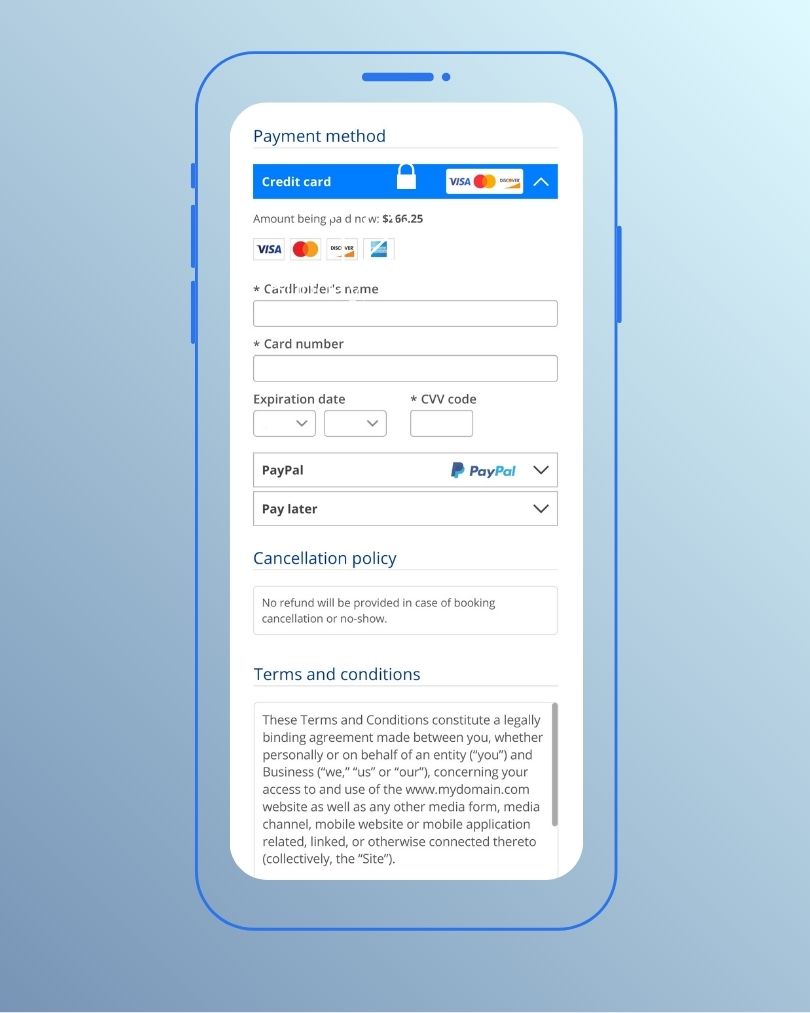
It helps to define each one before you choose.
- Full payment: the client pays the full price online when booking. This gives the strongest commitment and suits gift bookings and high-demand evening slots.
- Deposit: the client pays part of the price online to confirm the booking, and the remainder is settled later. This is the common middle ground for massage, because it protects the slot without asking a new client to prepay a long treatment.
- Card details: the client enters card details at booking, and payment is taken before or after the session. Nothing is charged at booking, but the card on file is what makes an automatic late cancellation fee possible.
- No online payment: the client books and pays at the salon.
Two further settings refine how clients pay through online booking for massage therapists. Deferred payment lets clients choose whether to pay now or later, with a default you set, which suits salons that want to offer flexibility without losing the deposit habit. The Pay Balance option gives clients a button to pay the remaining amount online, which can shorten checkout at reception.
A practical way to decide is to look at where your lost revenue actually comes from. If first-time clients are the ones who fail to arrive, require a deposit on introductory treatments only and leave regular services on card details. If late cancellations of long treatments are the issue, require a deposit on 90-minute and 120-minute services. Because terms are set per service, you do not need one rule for the whole menu. You can read more about how to take deposits and payments online on the payments feature page.
Remember that payment gateways charge their own processing fees, separate from your booking software subscription, so factor those into deposit amounts.
Step 4: Write a Cancellation Policy the System Can Enforce
A cancellation policy is the set of rules that decides what happens when a client cancels late or does not arrive. With online appointment booking for massage, clients must accept your policy before they can complete a booking, so every online client has accepted the policy you configure before the appointment is confirmed.
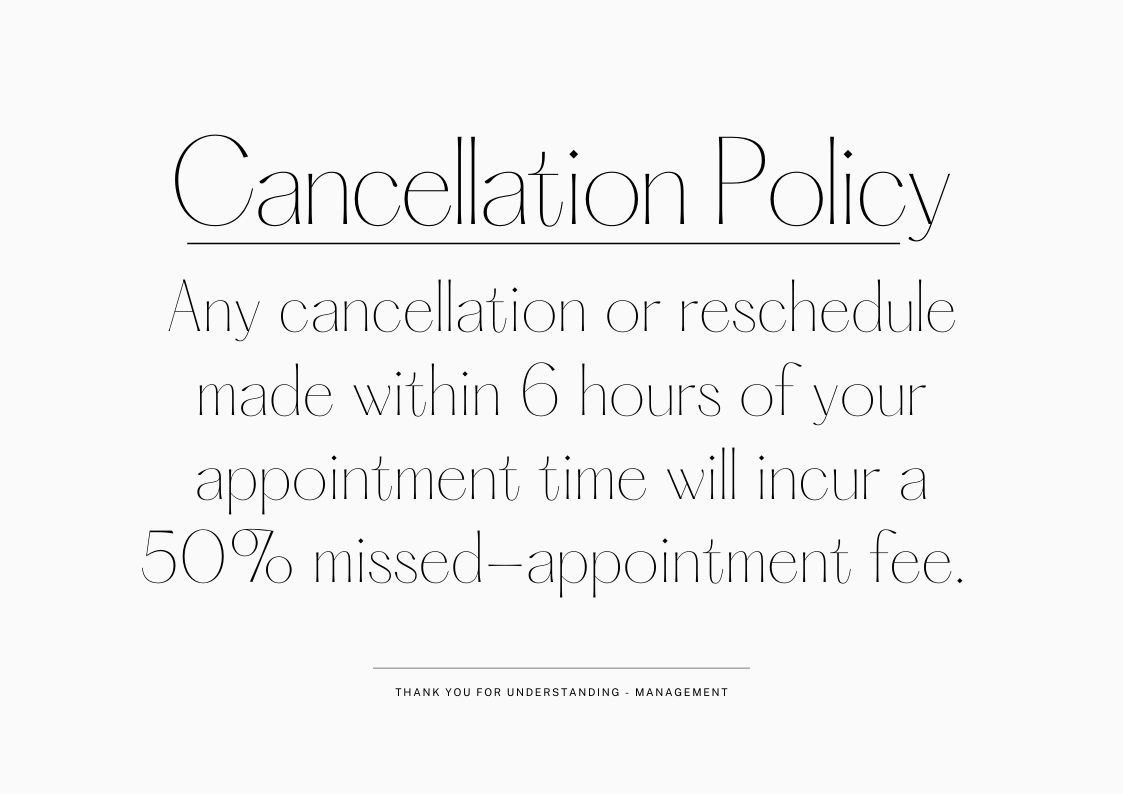
There are two ways to set it up, and the choice changes what the system does for you.
- Rules mode: you set a standard fee and time-based fees, for example, a fee when a client cancels less than 24 hours before the appointment. When a card is on file, the late cancellation fee is charged automatically. When a cancellation qualifies for a refund, the refund amount is calculated, and you are notified, so you can review it and issue it yourself.
- Custom text mode: you write your own policy text, and the system displays it for clients to accept. No fees are charged, and no refund notices are generated automatically, so any fee is handled manually.
For most massage salons that take deposits or card details, rules mode is the stronger choice, because the policy the client accepts and the fee the system charges come from the same settings. When you run online booking for a massage salon, the point to watch is consistency. Your website, your confirmation emails, and any signage at reception should describe exactly the policy you configured. If the website says “free cancellation up to 12 hours before” while the rules charge a fee inside 24 hours, the client will reasonably rely on the website, and the fee becomes difficult to enforce. Only promise clients what the booking setup actually does, and update both places together when you change the policy.
Keep the policy short: the notice period, the fee, the no-show rule, and how a client can reschedule. Clients can reschedule and cancel online, and pointing them to that option inside the policy reduces late calls.
Step 5: Turn On Confirmations, Email Reminders and Text Reminders
Confirmations and reminders take little time to set up, but they do much of the work of keeping the calendar full. Branded confirmation emails go out automatically when a booking is made. Reminders are configured in Settings > Reminders.
- Email reminders: you choose how long before the appointment the reminder is sent. Use the confirmation email, and the confirmation message attached to each therapist or room, to repeat the essentials: what to wear, which entrance to use, and the cancellation notice period.
- Text reminders: SMS reminders draw on SMS credits that you purchase in advance. The wording of text reminders is set by the system, so place any salon-specific instructions in the confirmation email rather than expecting them in the text.
- Staff notifications: therapists and managers can receive notifications by email or SMS under rules you configure.
- Review follow-ups: after the appointment, a follow-up email can ask the client for feedback or a review, which builds the reputation that brings in the next first-time client.
How far ahead should a reminder go? There is a trade-off. A reminder sent two days before gives the client enough time to cancel within your notice period, so you can offer the slot to someone else. A reminder sent a few hours before is better at preventing simple forgetting, but by then a cancellation usually falls inside the late window. One approach is to send an email reminder far enough ahead to sit just outside the cancellation window and to add a text reminder closer to the appointment. Choose the reminder timing for your massage online booking to match your own notice period rather than copying another salon’s.
Step 6: Collect Intake and Health Information Before the Session
Massage is a hands-on treatment, so therapists need to know about health conditions, medications, and preferences before the client is on the table. With online booking for a massage salon, the question is not whether to collect intake information, but when.
Intake questions in a massage salon online booking flow are built with custom fields on the client form. Keep this form short, because the time slot is held for 10 minutes while the client completes checkout. A long health questionnaire at that point risks the hold expiring and the client losing the slot they chose. A sensible split is to ask at booking only what affects the booking itself, for example pregnancy status, a key contraindication or a preferred pressure, and to collect the full health history afterwards.
For the full history and consent, the salon can collect information during booking or through a digital waiver that the client signs before the appointment. Digital waivers are a paid add-on, and a waiver can be sent to the client to sign online before the appointment. Contraindications, medications, and pressure preferences are then kept on file, with the signed forms attached to the client record, where the therapist can find them before a session.
Two habits make intake work better. First, write questions in plain language and ask one thing per question, because clients answer on a phone screen. Second, decide who reads the answers and when. A form that nobody checks before the session gives a false sense of safety.
Step 7: Put the Booking Page on Your Website
Clients often check a salon’s website before they commit, so the booking option should be visible the moment they arrive. There are three ways to offer online appointment booking for massage from a website, and you can combine them.
- Booking widget: a booking widget is a block of code that places the full booking flow inside a page on your own website, with no pop-ups or overlays. With the “remain inside the widget” option, clients choose and pay without leaving your site.
- Book Now buttons and direct links: a button or link on any page that opens the booking flow, created in Marketing > Booking button and links and optionally pre-set to one service or category.
- Standalone booking page: a standalone booking page is a brandable page hosted at bookeo.com/yourname that needs no website at all. It is useful for links in emails, on social profiles, and in a business listing.
To embed the widget on any standard website, the setup follows three steps. First, go to Settings > Theme and Layout > Website integration, set Page location to “embed a widget in my website”, copy the widget code, and choose your Second screen option and Mobile option. Second, paste the code into the page where the widget should appear and save the page. Third, return to the same settings screen, paste the address of the page that now holds the widget (this becomes your default widget page), click Test booking, then OK. The system checks that the widget code is actually present on that page and will not save the setting if it cannot find it, which catches a missing or incomplete paste.
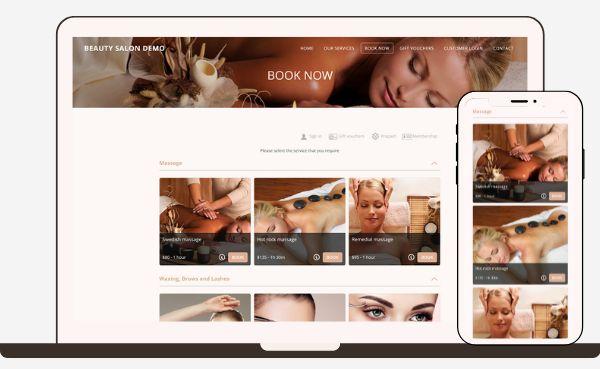
The second screen setting decides what happens after the first page of the booking flow. “Remain inside the widget” keeps the whole booking on your site. “Open a separate full-screen page” shows the first page on your site and completes the booking in a new full-screen tab, which is the better choice when a website editor wraps the widget in a frame with scrollbars. On mobile, there are three options: fully embedded, first page embedded and then full screen, or full screen in a new tab, and a “Book now” start button can replace the automatic switch. The widget needs at least 520 px of width, and 650 px or more is recommended. If your site has a sticky header, set the desktop and mobile floating menu height in the Website integration settings so the header does not cover the booking steps.
A few further details affect how booking behaves on your site:
- One default widget page: the widget can appear on several pages, but only one is the default widget page, and that is where links in client emails (to review a booking or leave feedback) will send people.
- Search visibility: the widget content is served from bookeo.com, so write your treatment descriptions on your own page and place a Book Now button or a service widget beside them. That way, your own page carries the text that search engines read.
- Business details and logo: set these in Settings > Business details and logo, so the booking page matches your salon’s branding.
- Language and security: the client interface is available in more than 30 languages, and the widget always loads over HTTPS, so use https:// in your booking page address.
If you use a website builder or content management system, check the steps for your editor before you paste the code, because each editor places code in a slightly different way, and review the options to embed the booking widget on your site.
Step 8: Let Clients Find and Book You from Google
Many first-time clients search for a massage near them before they ever reach a salon’s own site. Reserve with Google is an integration that lets those clients book directly from your business listing, and it complements massage online booking on your website rather than replacing it.
To use it for a massage salon, three things need to be in place: a verified Google Business Profile, an account with your services fully set up (Steps 1 to 3 above), and the Reserve with Google integration enabled under Marketing > Distribution Channels. Once it is active, a Book Online button appears on your listing in Google Search and Google Maps. Bookings made there land in your calendar with the therapist and room already assigned, so there is no separate diary to reconcile.

Eligibility for Reserve with Google is decided by Google and can depend on the type of service and the country, so check your listing after enabling the integration. Because clients will book from your listing using the same services, deposits, and policy, confirm those settings are final before you switch the integration on.
Step 9: Test the Full Booking Path on a Phone
Before you announce online booking for a massage salon to your clients, book a few appointments yourself, as a client would, on a phone. Many clients will book on a mobile device, and the interface adapts to the device without an app to install, but only a real test shows how your own settings behave together.
Work through this checklist:
- Book a deposit service: choose a service that requires a deposit, pick a named therapist, complete the intake fields, and pay with a real card. Confirm that the deposit amount and the balance are correct.
- Check the client emails: confirm that the confirmation email arrives, that it shows the right therapist, room message, and address, and that the reminder arrives at the time you set.
- Try “first available”: make a second booking without choosing a therapist and check which therapist the system assigns.
- Test the room rule: book a room-specific treatment, such as pregnancy massage, and confirm that only times when the equipped room is free are offered.
- Cancel twice: cancel one booking outside your notice period and one inside it. Check that the fee and refund behavior match what your policy text says.
- Review the calendar on mobile: open the admin side on a phone, because all admin functions work on mobile, and confirm that the test bookings appear correctly for each therapist.
Cancel the test bookings afterwards and refund the test payments yourself. Then ask one regular client to book through the website and tell you anything that felt unclear. A first-time view from someone outside the salon catches wording problems that the person who set everything up no longer notices.
Keeping Clients Coming Back After the First Booking
Once massage salon online booking is running, the same system can encourage repeat visits. Four tools are worth setting up early.
- Recurring bookings: clients and staff can book a series of appointments on the same day each week or on varying days, which suits clients on a monthly or every-two-weeks treatment plan.
- Prepaid packages: a package works like a virtual punch card, for example, five massage sessions for the price of four. Credits apply automatically when a returning client signs in, and a package can cover several services and carry its own validity period.
- Gift vouchers: a generic voucher holds a monetary value that can be used on any service, while a specific voucher covers one named treatment, such as a 60-minute Swedish massage. Vouchers can be sold online and from the calendar at reception.
- Memberships: members can pay once upfront or on a recurring schedule, and receive benefits such as member prices, members-only services or free services.
These tools are best introduced one at a time. A salon that already sells gift vouchers on paper, for example, can start by moving vouchers online, because each voucher then has its own code and validity term and can be searched by code or customer.
Setting Up Booking Software for a Massage Salon
Every step in this guide describes how Bookeo works for massage salons, from therapist and room scheduling to deposits, reminders, and website booking. For online booking for a massage salon, the practical advantages are the ones covered above: per-service payment terms, a cancellation policy the system enforces, therapists and rooms scheduled together, and a booking page that works on your website or on its own.
The pricing model is straightforward for small practices. Plans are billed month to month with no lock-in contract, and Bookeo takes no commission on your bookings and adds no booking fee for your clients. Payment gateway fees for processing cards are separate and are charged by the gateway you choose. Monthly plans are sized by the number of therapists, staff logins, and bookings per month, and you can try the software free for 30 days with no credit card required, which is enough time to complete the nine steps above and test your massage online booking on a phone before you commit.
Frequently Asked Questions
Can massage clients pay a deposit when they book online?
Yes. When a service is set to require a deposit, the client pays that amount online to confirm the booking. The remainder can be paid at the salon, or online using the Pay Balance option.
Do I need a website to take massage bookings online?
No. Massage salon online booking can run from a standalone booking page at bookeo.com/yourname, which works without any website. You can share its link in emails, on social profiles, and in your business listing, and add a website widget later if you build a site.
How far ahead should reminders go out?
You choose the timing. A reminder sent before your cancellation window closes gives clients the chance to cancel in time for you to rebook the slot, while a reminder sent closer to the appointment is better at preventing forgetting. One balanced approach is an earlier email reminder followed by a later text reminder.
Can clients choose their therapist?
Yes. On a massage booking page, clients can choose a therapist when customer selection is enabled for the therapist resource type. You can also add a “first available” option, and choose how the system assigns therapists automatically when a client does not pick one.
Can I stop two clients booking the same room?
Yes. Set your treatment rooms up as resources and assign them to the treatments that need them. A booking is only confirmed when the therapist and the required room are both free.
Can clients complete health forms before their first visit?
Yes. Essential questions can be asked as custom fields during booking, and a fuller health history and consent can be collected through a digital waiver signed before the appointment, with signed forms attached to the client record.
Key Takeaways
- Prepare first: gather services, therapists, rooms, payment gateway details, policy wording and intake questions before opening any settings.
- Model the real constraints: set therapists and rooms as resources so a booking only confirms when both are free.
- Set payment terms per service: use deposits or card details where lost revenue actually occurs, not as one rule for the whole menu.
- Match policy and promises: use rules mode for automatic late fees, and make your website describe exactly the policy you configured.
- Keep checkout short: the slot is held for 10 minutes, so ask only essential intake questions at booking and collect the rest later.
- Test on a phone: book, pay, receive reminders, and cancel inside and outside the window before you announce the booking page.
Conclusion
Online booking for a massage salon works best when it reflects how the salon really operates: which therapist performs which treatment, which room holds which table, how much commitment a booking requires, and what happens when plans change. Set those rules once, write the policy in the same terms, and the booking page can handle scheduling, payment, and reminders while therapists focus on clients. If you are ready to put massage salon online booking in place for your therapists and treatment rooms, Bookeo gives massage therapists and salon owners deposits, reminders, room scheduling, and website booking in one massage scheduling system, with a free 30-day trial to test every step in this guide.